DXVK
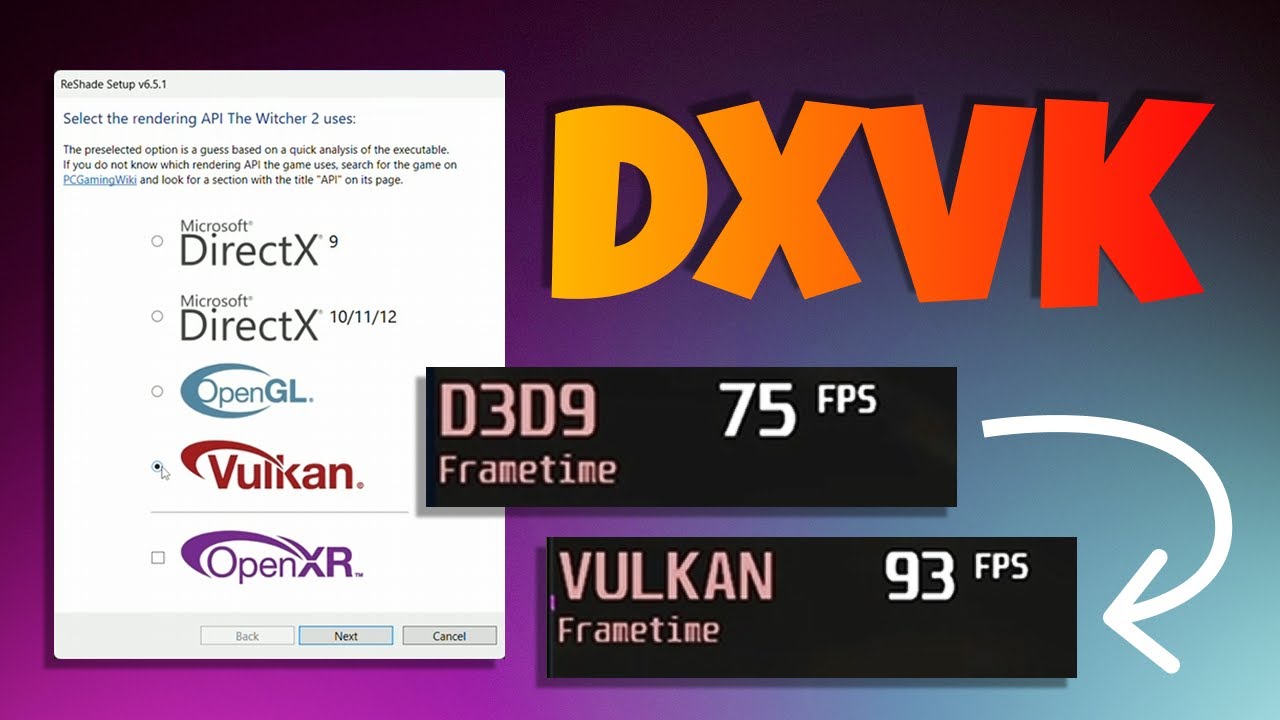
DXVK is a graphics API wrapper that translates DirectX calls into Vulkan. While it is commonly used on Linux to run Windows games, it can also be used on Windows to allow DirectX 8/9/10 titles to leverage ReShade's compute shaders by presenting them as Vulkan applications.
Download DXVK
Download the latest version of DXVK from the DXVK GitHub releases page.

Determine the Game's DirectX Version and Architecture
Go to PCGamingWiki and search for the game. Record the following information:
- The DirectX version the game uses (for example, DirectX 9 or DirectX 10).
- Whether the game executable is 32‑bit or 64‑bit.
Install DXVK
After determining the game's architecture and DirectX version, open the DXVK ZIP file using an archive manager such as 7-Zip or WinRAR. Inside the archive, two main folders are provided: x64 (for 64‑bit executables) and x32 (for 32‑bit executables). Open the folder that matches the game's architecture:

Within the selected architecture folder, several .dll files are available. Each DLL corresponds to a specific DirectX version:
| DLL Name | DirectX Version |
|---|---|
d3d8.dll | DirectX 8 |
d3d9.dll | DirectX 9 |
d3d10core.dll | DirectX 10 |
d3d11.dll | DirectX 11 |
dxgi.dll | DirectX 11 / DirectX 12 |
Copy the DLL that matches the game's DirectX version into the same directory as the game's main executable. If the game installation directory is unknown, see the guide on finding a game's executable for details.
Install ReShade
After DXVK is installed for the game, ReShade can be installed. Because DXVK translates the game's DirectX calls to Vulkan, ReShade must be installed for Vulkan, not for the game's original DirectX version.
Download and run the latest ReShade installer from ReShade.me. When prompted to select the game's rendering API, choose Vulkan. DXVK presents the game to ReShade as a Vulkan application even if the game originally uses an older DirectX version.
For detailed, step-by-step instructions on installing ReShade, refer to the ReShade installation guide.
After installation is complete, launch your game to verify that both DXVK and ReShade are working correctly. You should see the ReShade overlay appear when you press the default key (usually the Home key), confirming that everything has been set up successfully.