Depth
The depth buffer (sometimes referred to as the Z-buffer) is essential for most 3D effects. It's a single-channel image where each pixel stores its distance from the camera. Many ReShade effects such as ambient occlusion, global illumination, and depth of field need an accurate depth buffer to work correctly. So, ReShade's "Generic Depth" add-on automatically locates and exposes the game's depth buffer to the shaders available for ReShade.
Generic Depth Add-on
Since games often use multiple depth buffers (for shadows, post-processing, etc.), finding the correct depth buffer in ReShade can be tricky. However, ReShade's included add-on "Generic Depth" comes with controls for both automatic and manual selection of the buffers we use.
In order to configure or view Generic Depth's current settings, you'll need to open up ReShade's "Add-ons" tab and find the "Generic Depth" add-on. Once found, you can see the checkmark next to the name of the Add-on that allows you to enable or disable it after a game's restart.

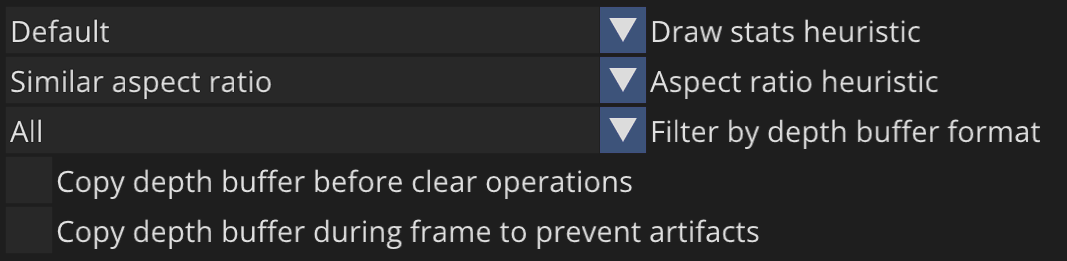
A little further down in the Generic Depth add-on panel, you'll find the controls for automatically selecting a depth buffer based on heuristics (draw calls, aspect ratio, and buffer type). Typically these are set to be a catch-all for most games, however, you might want to configure them if you find that ReShade isn't able to automatically switch to the proper buffers (if the game changes them frequently i.e. when loading or traversing through sections of a game world that require different buffers).
Additionally, there is a toggle for "Copy depth buffer before clear operations" which can be useful in games that frequently clear the depth buffer, and can resolve other issues.
Going even further down, you'll be able to see all of the buffers that ReShade is able to detect generically within your game. The automatic heuristics settings that were set above will determine which buffer is automatically selected as a depth buffer and those will be highlighted in blue.

| Address | Resolution | Type | Draw calls | Vertices |
|---|---|---|---|---|
| 0x000002d31247acf0 | 3840x2160 | DS32S8 | 12 draw calls (0 indirect) | 3466 vertices |
DisplayDepth
In every install of ReShade you'll be provided with a shader named "DisplayDepth".

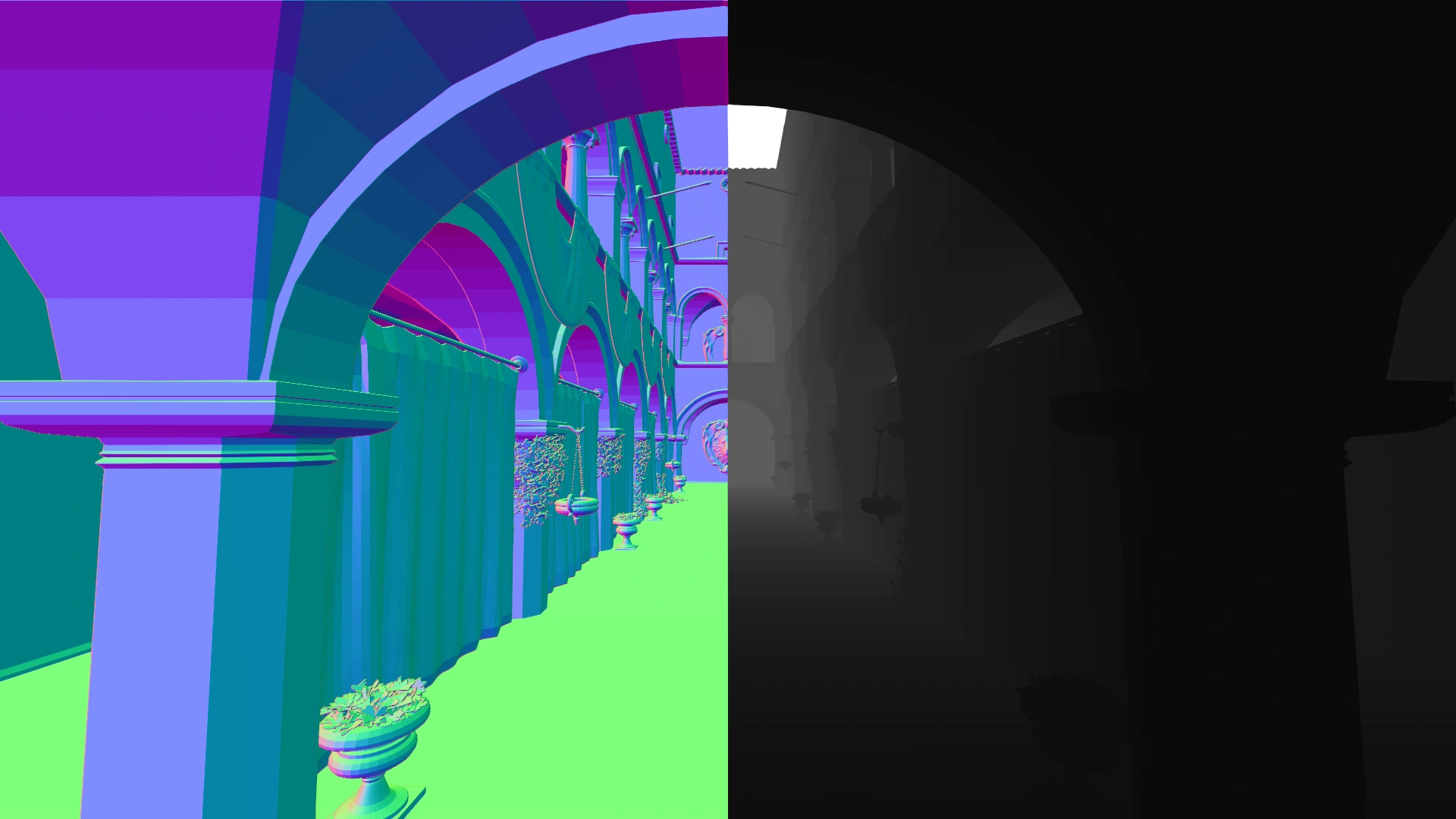
When enabled, it allows you to see the current selected buffer from "Generic Depth". This is a handy tool to have in order to properly configure the settings within "Generic Depth", as without it, everyone would be blindly guessing which buffer is the one that matches their game world the best.
Depth Orientations
Every game is wildly different from the next. Developers often have to use different strategies for how they store and maintain their buffers. This is called orientation, and it can dramatically affect how depth effects perceive the game world. It must be fixed manually per game, as ReShade isn't able to automatically detect the orientation that the selected depth buffer should be in.
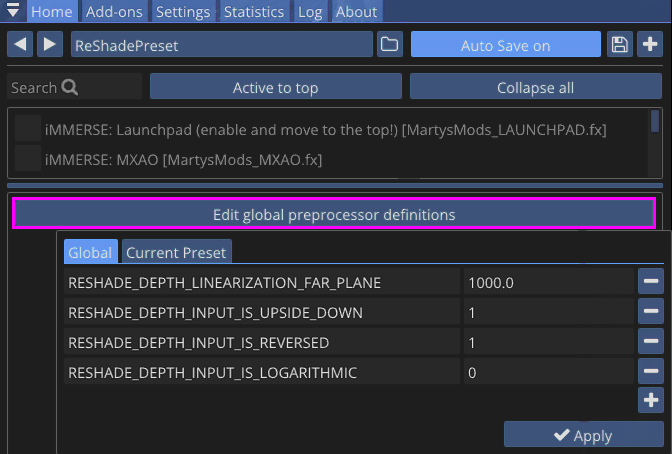
When configuring depth, do not toggle on or use any of the controls provided to you in the "DisplayDepth" shader. Instead, use the "Edit Global Preprocessor Definitions" button in the middle of ReShade's Home tab.
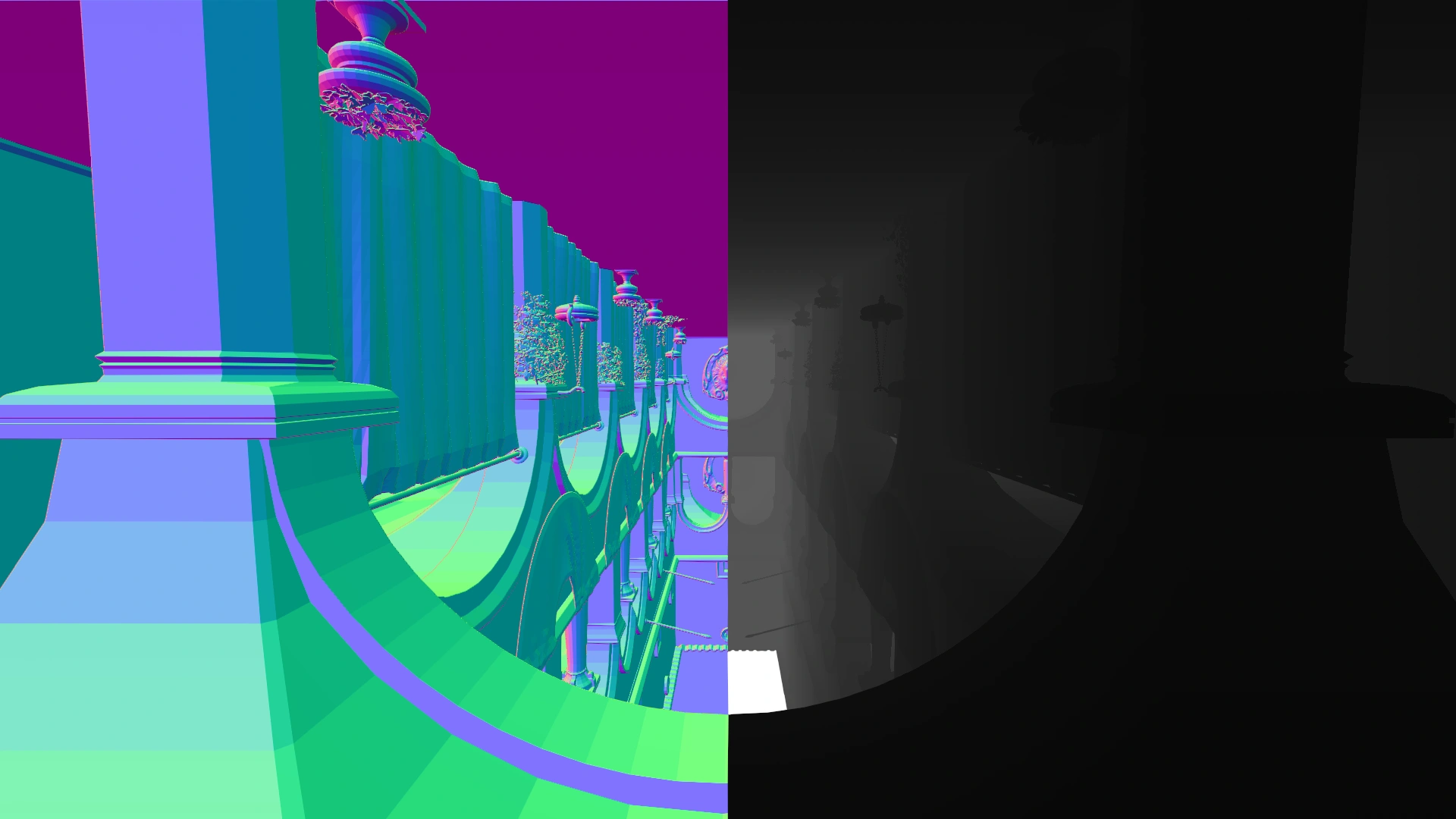
Upside Down
The image shows an upside down depth buffer. You can solve this issue by simply inverting the RESHADE_DEPTH_INPUT_IS_UPSIDE_DOWN preprocessor setting within the "Global Preprocessor Definitions" under the "Home" tab of ReShade. If it is set to 1, set it to 0 and vice versa.
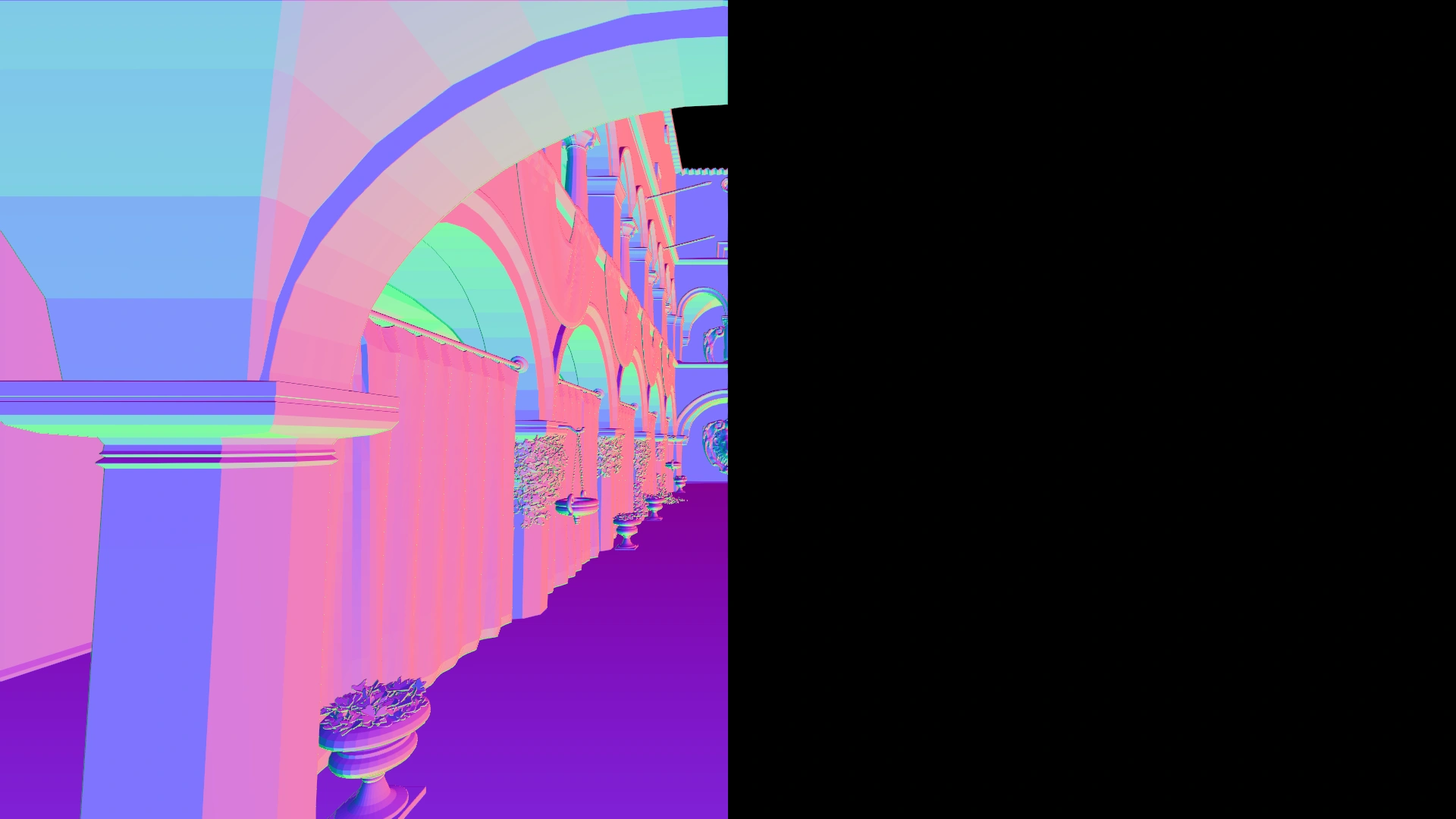
Reversed
The image shows a reversed depth buffer. You can solve this by inverting the RESHADE_DEPTH_INPUT_IS_REVERSED preprocessor setting within the "Global Preprocessor Definitions" under the "Home" tab of ReShade. If it is set to 1, set it to 0 and vice versa.
Common Depth Issues
Empty Depth Buffer
When ReShade is configured to not have the proper depth buffer, the shader DisplayDepth will show a half-and-half screen depicting the buffer being empty. The issue is typically resolved by ensuring that MSAA is not enabled or by choosing the proper depth buffer in "Generic Depth's" control panel.


Solutions
- Toggle "Copy depth buffer before clear operations" and "Copy depth buffer before fullscreen draw calls".
- Select the depth buffer with the closest resolution to your game resolution.
- Select the depth buffer with the highest amount of draw calls and vertices.
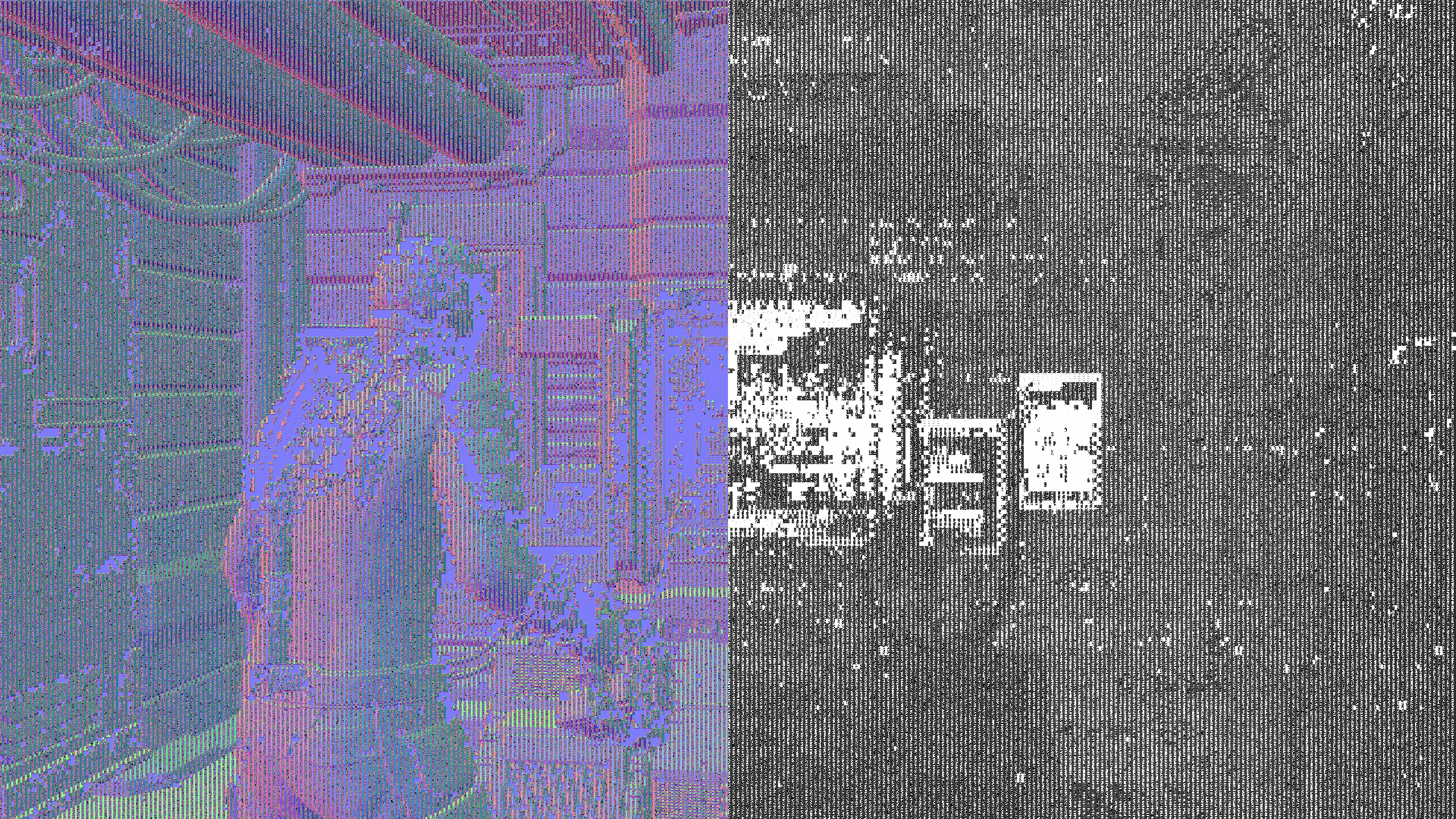
DLSS/FSR/XESS Checkerboarding
When a game uses DLSS/FSR/XESS, it can often result in issues where the depth buffer looks all garbled in a checkerboard manner.
Solutions
- Toggle on "Copy depth buffer before clear operations" and "Copy depth buffer before fullscreen draw calls".
- Disable DLSS/FSR/XESS
Automatically Resizing
Some games provide a dynamic resolution feature that constantly resizes and changes the resolution of the game in order to hit an FPS target. This often can mess with the depth buffer and cause issues where depth effects will go all over the screen.
Solutions
- Disable Dynamic Resolution Rendering
- Disable DLSS/FSR/XESS
Depth Effects Showing Through Cutscenes or FMVs
Some games freeze the depth buffer during cutscenes or FMVs, meaning the last in-game depth data stays locked in place while the video plays over it. This causes depth-based effects such as ambient occlusion, global illumination, or depth of field to incorrectly render on top of the cutscene.
There is no way to fix this through ReShade or depth buffer configuration. The only reliable workaround is to bind a key to either disable the individual depth effects or toggle all effects off globally before a cutscene begins, then re-enable them after. Both options are available in the ReShade Settings tab under Key Bindings.
Global Preprocessor Settings
RESHADE_DEPTH_LINEARIZATION_FAR_PLANE
Used to modify the far plane value of the depth buffer, affecting how depth is interpreted across the visible range. Default value is 1000. Smaller numbers can be used to pull the far plane closer to the camera's origin and larger numbers to push the far plane further from the camera's origin.
RESHADE_DEPTH_INPUT_IS_REVERSED
Used when normals look to be oriented properly, but the depth is improper or in the opposite configuration. Can be either 1 or 0.
RESHADE_DEPTH_INPUT_IS_UPSIDE_DOWN
Used when normals and depth appear to be turned upside down. Can be either 1 or 0.
RESHADE_DEPTH_INPUT_IS_LOGARITHMIC
Used when the normals and depth appear with waves or "stripes." Not very common, however, the setting can be either 1 or 0.
RESHADE_DEPTH_INPUT_X_SCALE and RESHADE_DEPTH_INPUT_Y_SCALE
Allows you to configure the scaling of the depth buffer along the X and Y axes. The values you input will multiply the current depth buffer dimensions.
RESHADE_DEPTH_INPUT_X_OFFSET and RESHADE_DEPTH_INPUT_Y_OFFSET
Allow you to offset the depth buffer in the X and Y directions.
RESHADE_DEPTH_INPUT_X_PIXEL_OFFSET and RESHADE_DEPTH_INPUT_Y_PIXEL_OFFSET
Similar to the previous setting, but on a per-pixel basis.