Manually Installing Shaders
Many shader repositories are not listed in the ReShade Setup Tool and must be installed manually. Download the repository or archive and extract its contents into the game's ReShade-Shaders folder. ReShade must already be installed and working. See ReShade Setup Tool if not. Paths in this guide are relative to the game executable's directory (where ReShade is installed).
Shaders from Patreon, Discord, or direct download (ZIP or folder) skip the GitHub download steps. Use the provided files and extract or copy them into ReShade-Shaders as below.
Downloading the Shader Repository(s)
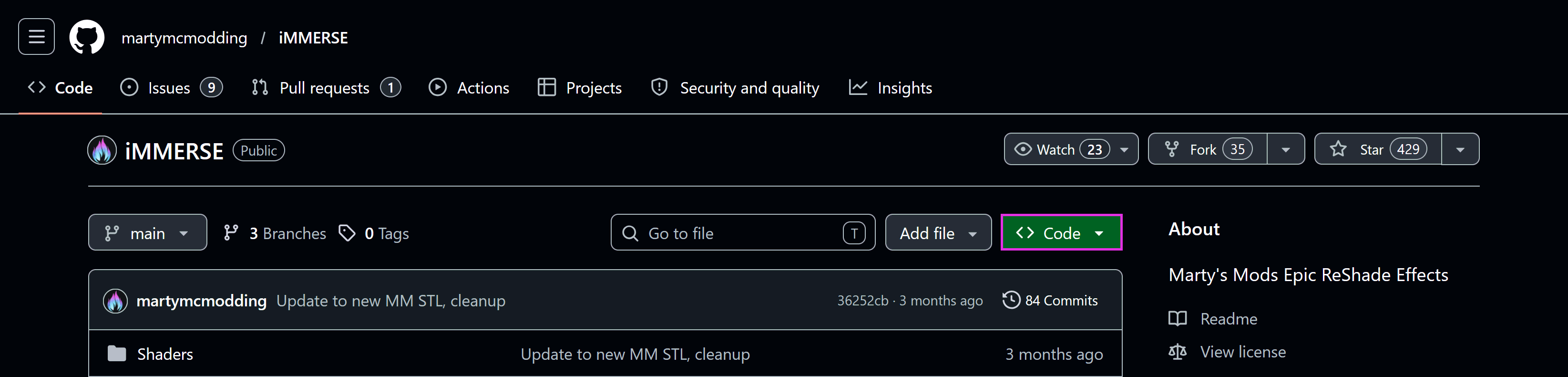
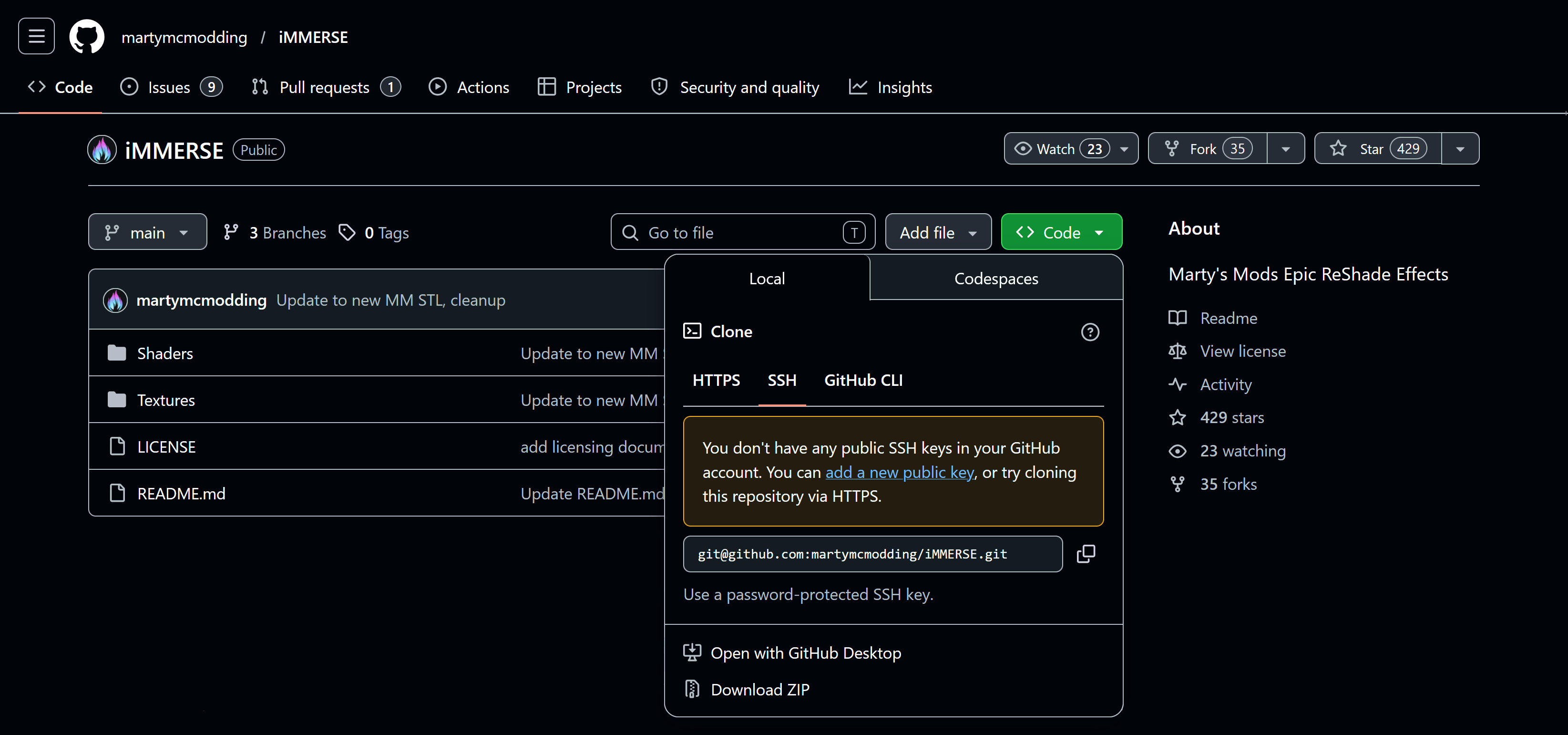
Most ReShade shader repositories are hosted on GitHub. Open the repository page, click the green Code button (top right), then Download ZIP in the dropdown.
Installing the Shader Repository(s)
The ReShade-Shaders folder is in the same directory as the game executable (the ReShade install location). Extract the contents of the shader ZIP into ReShade-Shaders and preserve the folder structure. Repository archives usually contain Shaders and optionally Textures. You'll want to merge these with the existing ReShade-Shaders\Shaders and ReShade-Shaders\Textures folders.
On file conflicts, choose “Replace the files in the destination.”
Setting the Effect and Texture Search Paths
New shaders or textures may not appear if ReShade's search paths are wrong or were changed. Open the ReShade overlay, go to the Settings tab, and set the paths below. These are relative to the game executable directory. Then clicking Reload at the bottom of ReShade's Home tab.
| Setting | Correct Path |
|---|---|
| Effect Search Path | .\ReShade-Shaders\Shaders\** |
| Texture Search Path | .\ReShade-Shaders\Textures\** |