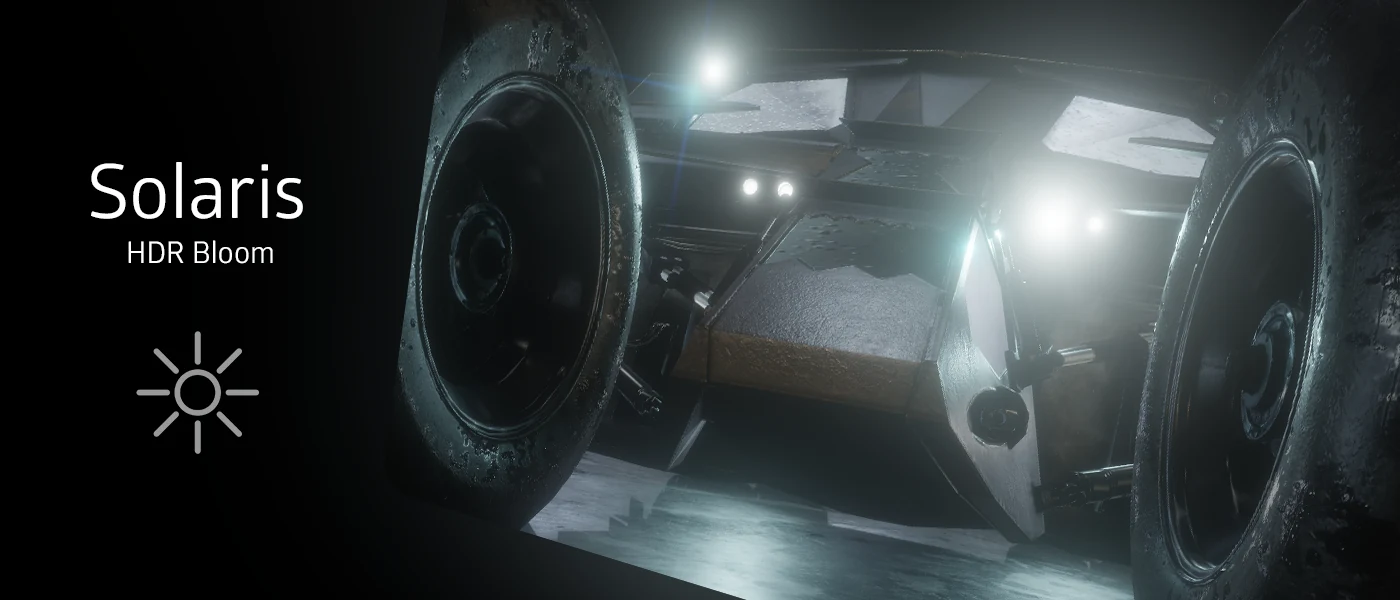
iMMERSE Pro: Solaris is a physically based exposure and bloom shader. It works by reverse-tonemapping the scene back into HDR space before calculating bloom, which means bright areas produce bloom that behaves like real light rather than a simple screen-space blur. The result is bloom that scales naturally with scene brightness and responds to exposure the same way a real camera would.
Preprocessor Definitions
ENABLE_SOLARIS_REGRADE_PARITY
Default: 0. Accepts 0 or 1.
When enabled, ReGrade receives the HDR output from Solaris as its color input instead of the standard tonemapped frame. This allows ReGrade's exposure, tone, and color grading to work on the full HDR range that Solaris produces rather than the already-compressed image. The practical benefit is that color grading changes made in ReGrade will interact correctly with the bloom and exposure that Solaris applies, giving you a non-destructive pipeline where all three effects work together without clipping or compressing each other's contributions. If you are using both Solaris and ReGrade together, enabling this is recommended.
SOLARIS_PERF_MODE
Default: 0. Accepts 0 or 1.
Reduces GPU load at the cost of some visual quality. Useful on lower-end hardware or in demanding scenes where performance headroom is limited.
SOLARIS_ARTISTIC_MODE
Default: 0. Accepts 0 or 1.
Switches Solaris from its default physically accurate bloom model to an artistic mode that exposes a Blend Mode selector with several non-physical bloom compositing options. When this is disabled, the Bloom Haziness slider is shown instead. See the Artistic Mode section below for details on the available blend modes.
Parameters
Log Exposure Bias
Range: -5.0 to 5.0. Default: 0.0.
Adjusts the exposure of the scene before bloom is calculated. Because Solaris operates in HDR space, this adjustment is applied logarithmically, which matches how exposure works on a real camera. Raising the value makes the scene brighter, which causes more areas to exceed the bloom threshold and contribute to the bloom pass. Lowering it dims the scene input, restricting bloom to only the brightest areas. At 0.0, no exposure adjustment is made and bloom is calculated from the scene as-is.
Log HDR Whitepoint
Range: 0.0 to 12.0. Default: 7.0.
Sets the brightness level in HDR space that Solaris treats as the upper threshold for bloom generation. Lower values allow moderately bright areas to contribute to bloom, spreading the effect across more of the scene. Higher values restrict bloom to only the very brightest highlights, producing a tighter, more selective effect concentrated around the most intense light sources. This is one of the primary controls for defining which areas of a scene produce bloom and how broadly it spreads. Use it alongside Log Exposure Bias to dial in exactly which brightness range triggers the effect.
Bloom Intensity
Range: 0.0 to 1.0. Default: 0.3.
Controls how strongly the bloom contribution is blended back into the scene. At 0.0, bloom has no visible effect. At 1.0, the bloom is at full strength. The default of 0.3 is intentionally conservative to avoid washing out the image. Raise this gradually rather than pushing it high all at once, as bloom stacks quickly and can overexpose the scene at high values.
Bloom Radius
Range: 0.0 to 1.0. Default: 1.0.
Controls how far bloom spreads outward from bright sources. At higher values, bloom diffuses broadly across the screen with a soft, wide falloff. At lower values, bloom stays tighter and closer to the source. The default of 1.0 produces the widest possible spread.
Bloom Haziness
Range: 0.0 to 1.0. Default: 0.9.
This parameter is only visible when SOLARIS_ARTISTIC_MODE is set to 0.
Controls how much the bloom contribution takes on the color of the light sources versus appearing as a neutral white haze. At lower values, bloom is more colorful and tinted by the source light, so a red neon sign will bloom red. At higher values, bloom shifts toward a white, washed-out haze regardless of source color. The high default of 0.9 leans toward the hazy, atmospheric look. Lower this if you want bloom to retain the color character of your scene's lights.
High Resolution Input
Default: Disabled.
When enabled, Solaris uses a higher resolution buffer as the input to its bloom downsampling chain. By default, Solaris downsamples from a reduced resolution source to save performance. Enabling this uses the full resolution image as the starting point, which preserves finer detail in small or thin bright objects that might otherwise be lost during the initial downsample. The tradeoff is a higher performance cost. Enable this if small light sources or fine bright details are not producing bloom correctly at default settings.
Mask by Depth
Default: Enabled.
When enabled, Solaris uses the depth buffer to reduce bloom intensity on distant geometry. This prevents bloom from spreading uniformly across the entire scene and instead concentrates it on closer surfaces where it would be more physically expected. Disabling this allows bloom to appear at the same strength regardless of how far away a surface is.
Depth Mask Strength
Range: 0.0 to 1.0. Default: 0.5.
Controls how aggressively the depth mask reduces bloom on distant surfaces. At higher values, bloom falls off more strongly with distance, keeping it close to the camera. At lower values, the depth-based reduction is more gradual and distant surfaces still receive a meaningful bloom contribution. Only has an effect when Mask by Depth is enabled.
Artistic Mode
Blend Mode
This parameter is only visible when SOLARIS_ARTISTIC_MODE is set to 1.
Default: Energy Conserving.
Selects how the bloom contribution is composited back onto the scene. These modes replace the physically accurate default compositing with alternative blending approaches for creative use.
- Energy Conserving: The default physically accurate mode. Bloom is blended in a way that conserves light energy, meaning the total brightness of the scene is not artificially inflated. This is the most natural-looking option.
- HDR Drama: Exaggerates bloom contrast and saturation for a high-impact, cinematic look. Suited for dramatic scenes or stylized visuals.
- Orton: Based on the Orton effect from film photography, where a sharp exposure and a heavily blurred, overexposed version of the same image are blended together. Produces a soft, glowing quality that wraps around subjects.
- Dreamy: A more diffuse, softer bloom blend that gives the scene a hazy, ethereal quality.
- Depth Blend: Composites the bloom with awareness of scene depth, creating separation between near and far bloom contributions.
- Screen: Uses screen blending for the bloom composite. Screen blending brightens the image by combining pixel values in a way that always results in a lighter output, producing bright and vivid bloom without darkening any areas.