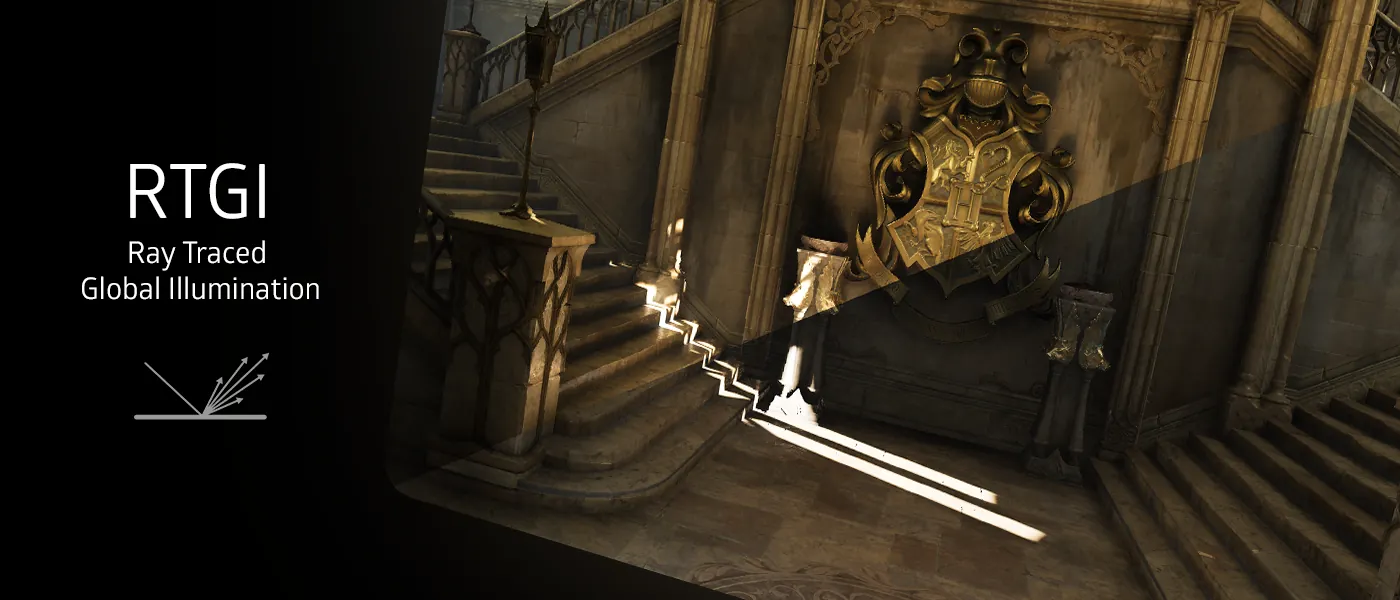
iMMERSE Pro: RTGI is a state-of-the-art ray traced global illumination shader that brings realistic lighting to your games. By utilizing ray tracing techniques, RTGI is able to physically simulate how light interacts with objects in the environment, through diffuse global illumination and ambient occlusion.
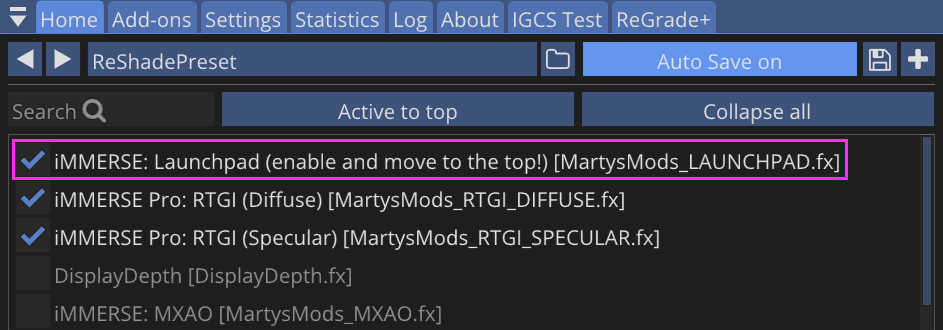
Launchpad is REQUIRED to be at the top of the shader load order for RTGI to function properly.
Configuration
Thickness
The first step in configuring RTGI is setting the Object Thickness parameter.
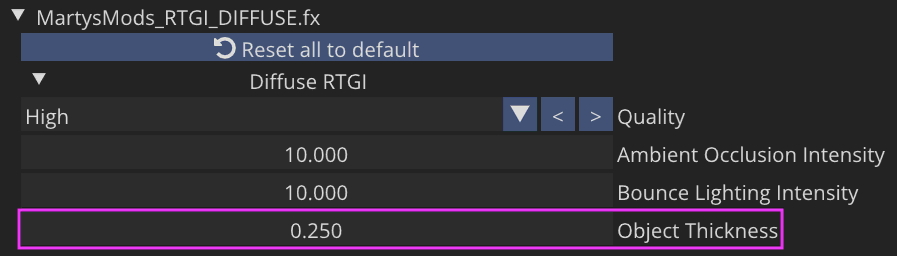
RTGI can only directly observe surfaces currently facing the camera, so it must estimate how far objects extend on their occluded sides.
Typically, the default value of 0.250 should get you far enough in most cases, however, the optimal Object Thickness value varies significantly between games due to differences in object geometry, world scale, and depth buffer characteristics. Games with thin objects (like foliage) typically require lower values, while games with thick, solid objects may benefit from higher values.
With the "Diffuse RTGI" debug view enabled, adjust the Object Thickness parameter while carefully observing changes in shadows and ambient occlusion.
Be cautious of overshooting the optimal value:
- Too High: Causes over-occlusion, haloing artifacts, and unrealistic shadowing
- Too Low: Results in insufficient occlusion, leaving areas without proper depth definition
Intensity
Once your Object Thickness is dialed in, the next step is setting the Ambient Occlusion and Bounce Lighting intensities.
In order to see the light being blended into your scene, it's best to disable the "Diffuse RTGI" debug view and set "Ambient Light" to 1.00.
- Bounce Lighting Intensity: controls the strength of indirect lighting produced by RTGI, simulating how light bounces off surfaces in the environment.
- Ambient Occlusion Intensity: controls the strength of ambient occlusion produced by RTGI, providing you with shadowing between nearby surfaces.
These intensity values are largely based on personal preference and artistic intent, but a fundamental rule is that no propagated lighting should exceed the brightness of the original light source.
Smoothed and Textured Normals
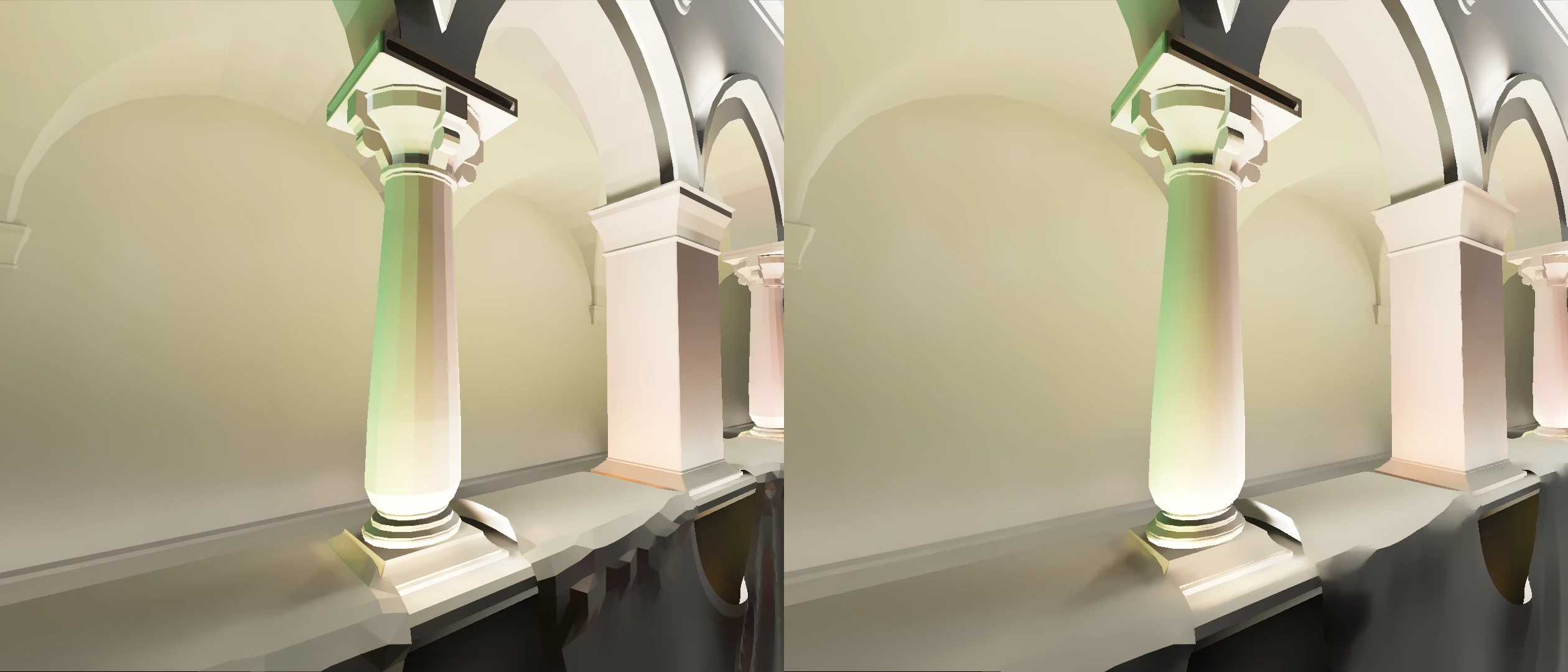
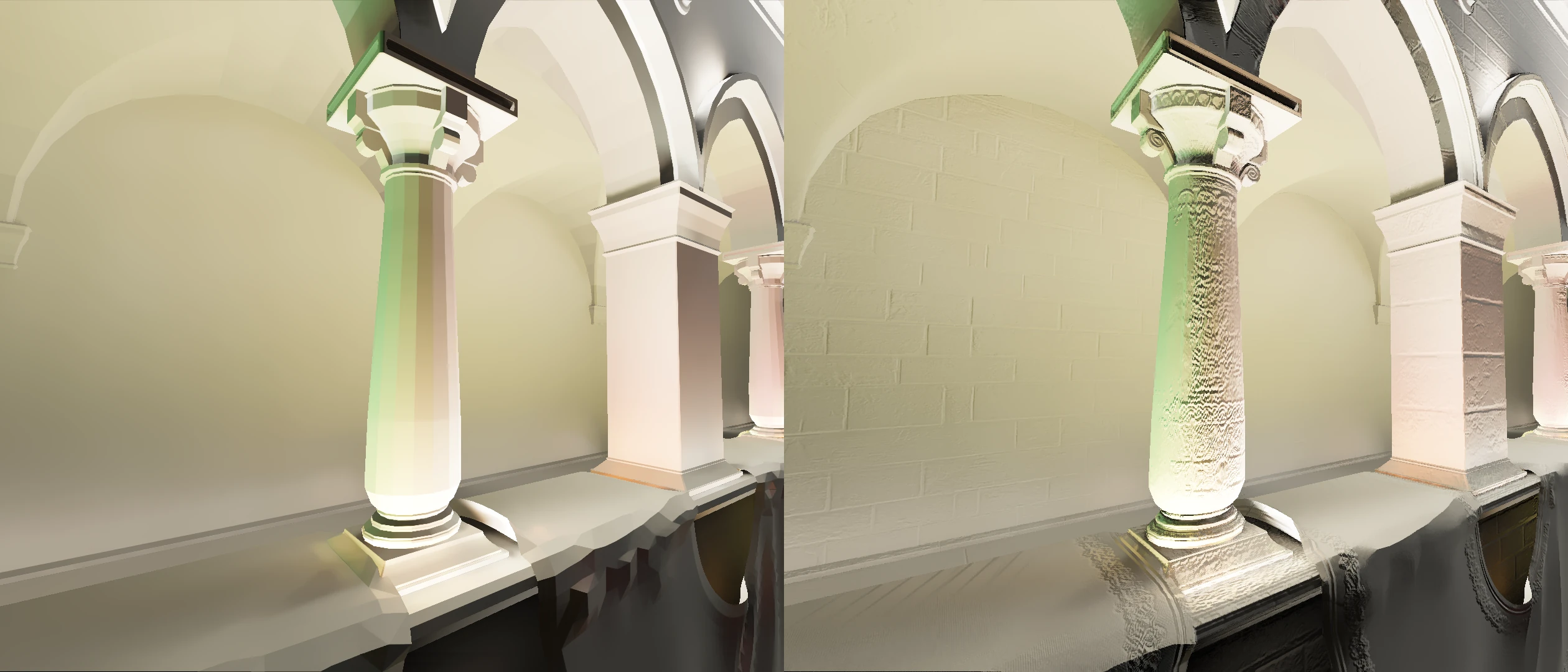
The Smoothed Normals and Textured Normals options, available through the iMMERSE Launchpad shader, help correct common visual issues that arise when using ReShade's generic depth buffer. These features address overly polygonal or blocky geometry by providing smoother surfaces with enhanced detail and depth.
Smoothed Normals
Smoothed Normals reduce the appearance of sharp, low-poly edges by averaging surface normals across adjacent geometry. This results in softer transitions and more natural lighting behavior, particularly beneficial for games with geometric limitations or stylized art directions.
Textured Normals
Textured Normals add fine surface detail by using the game's texture information to generate additional geometric relief for RTGI calculations. This creates the illusion of more complex surfaces, improving light interaction and visual depth without requiring access to the game's original normal maps.
Fadeout
The Fadeout controls allow you to set the maximum distance that RTGI will cast its ambient occlusion and bounce lighting. This is useful to avoid interference with distant fog or to gain back a small amount of performance.
DLSS/FSR/TAAU Compatibility
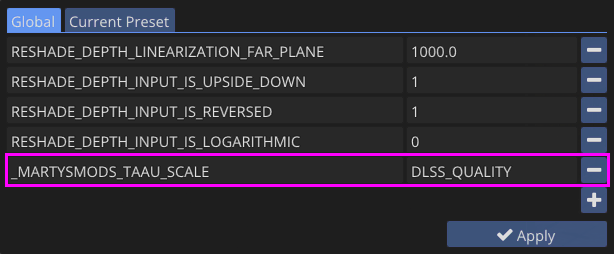
_MARTYSMODS_TAAU_SCALE is a global preprocessor definition that must be manually configured to address depth buffer jitter introduced by upscaling technologies. This preprocessor is essential when using DLSS, FSR, or TAAU to ensure proper depth buffer alignment and prevent visual artifacts.
The beginning underscore in _MARTYSMODS_TAAU_SCALE is mandatory. Without it, TAAU scaling compatibility will not function properly.
| Scaling Mode | DLSS | FSR |
|---|---|---|
| AA / Native | 1.000 | 1.000 |
| Quality | DLSS_QUALITY | FSR_QUALITY |
| Balanced | DLSS_BALANCED | FSR_BALANCED |
| Performance | DLSS_PERFORMANCE | FSR_PERFORMANCE |
| Ultra Performance | DLSS_ULTRA_PERFORMANCE | FSR_ULTRA_PERFORMANCE |
Debug View Modes
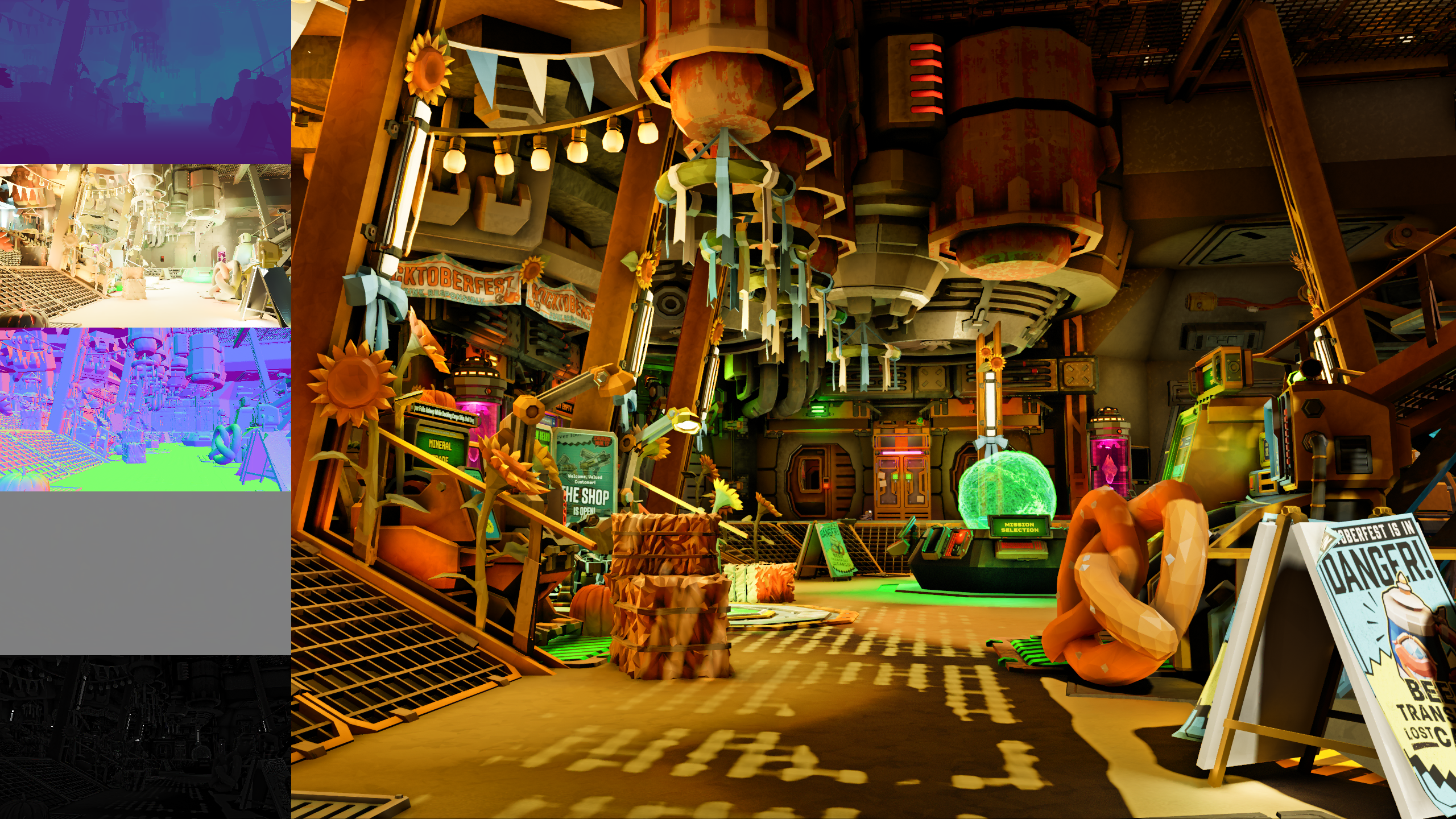
RTGI provides several debug visualization modes to assist with parameter tuning and understanding the shader's behavior:
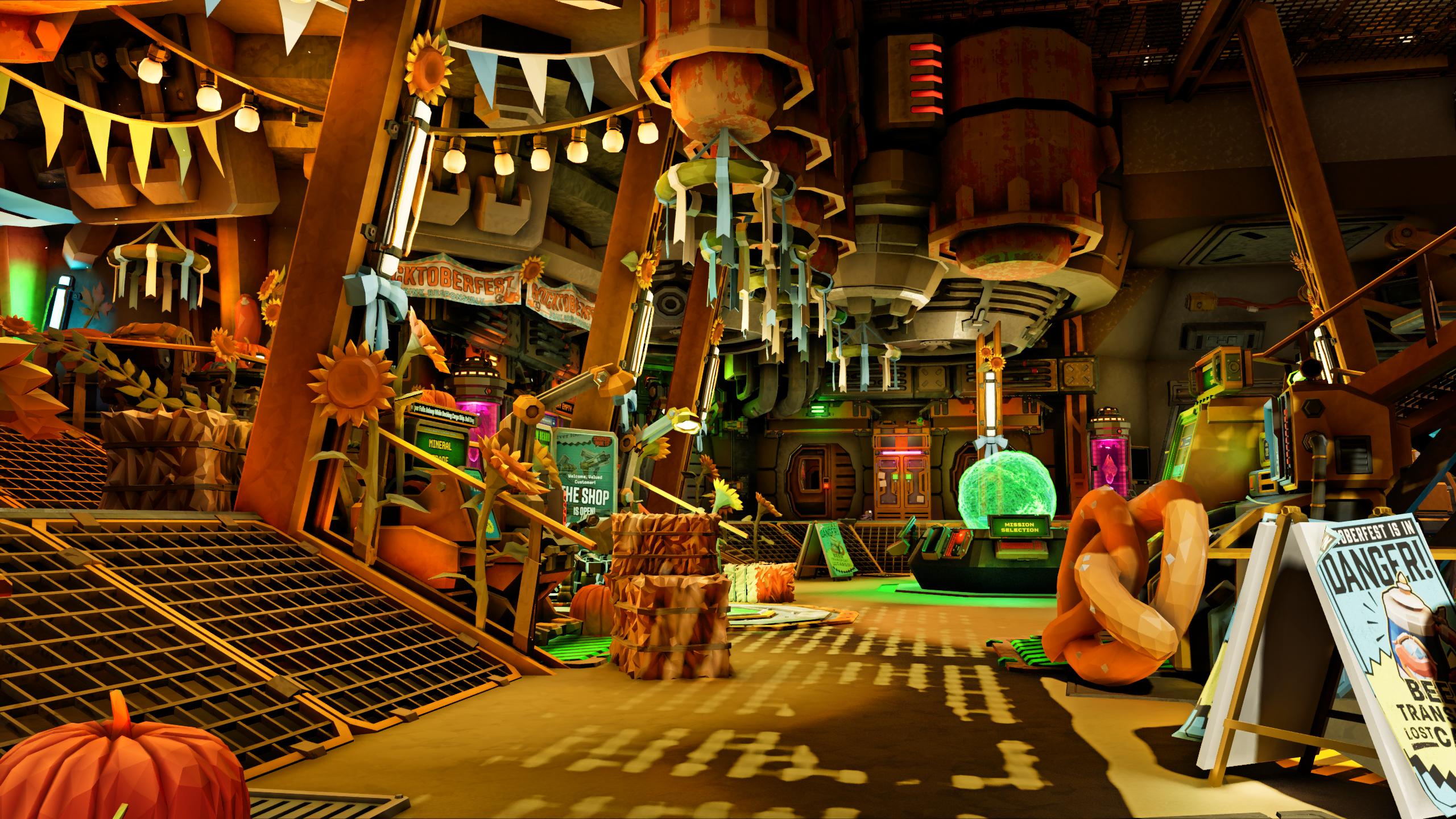
- Disabled: Standard RTGI output with all effects applied
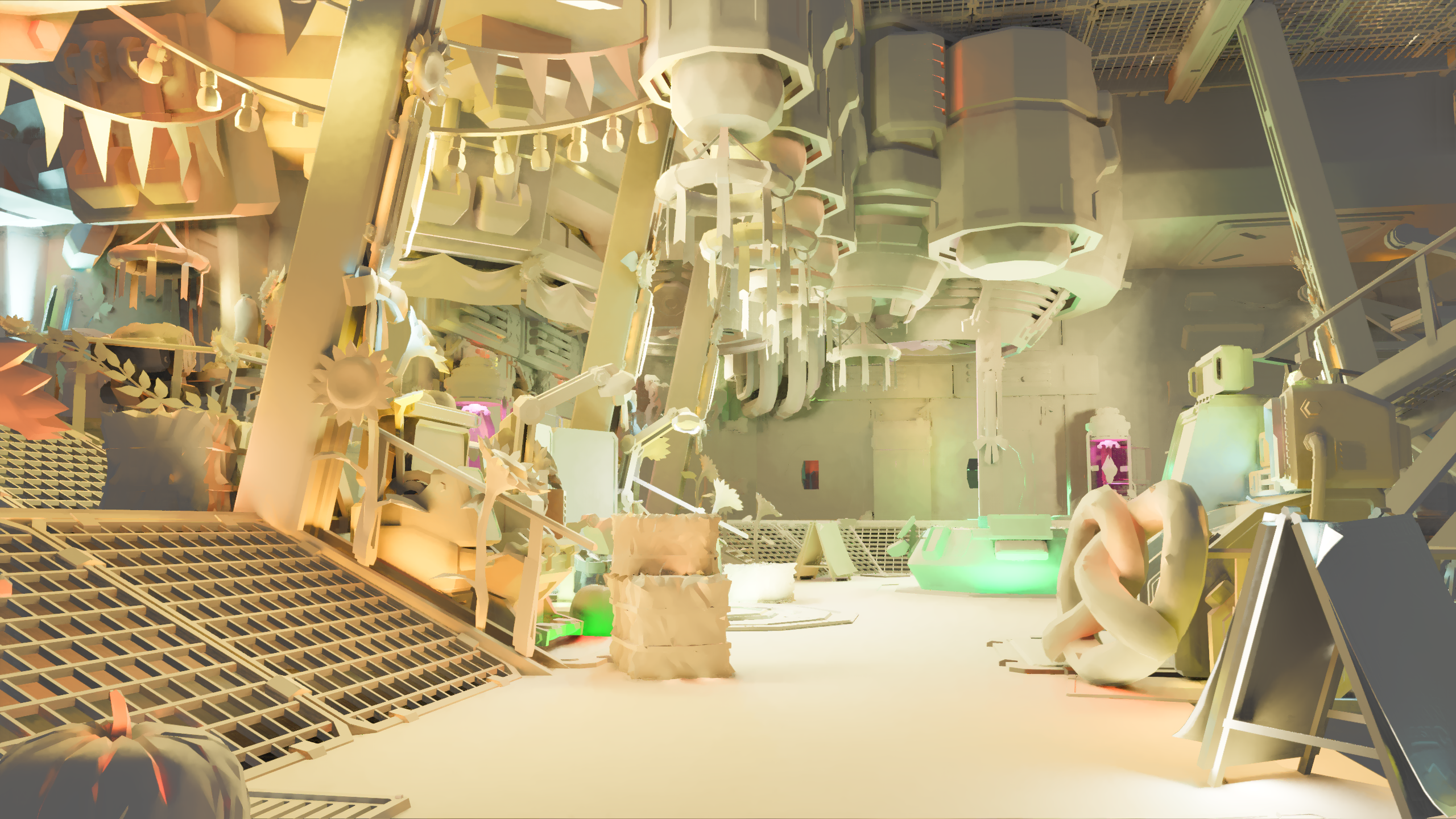
- Diffuse RTGI: Shows only the diffuse lighting calculations, useful for Object Thickness adjustments.
- Validation Layer: Comprehensive debug output showing Depth, Diffuse, Normal Vectors, Optical Flow, and Albedo data
Troubleshooting
Black Screen When Enabling RTGI
A black screen when enabling RTGI has two common causes:
- Missing Launchpad: iMMERSE Launchpad is not loaded or is not at the top of the shader load order.
- Missing texture files: One or more required iMMERSE texture files are missing or not in the correct location. Ensure all iMMERSE texture files are present and up to date in your textures folder.
RTGI Not Making Any Visible Changes on Screen
If RTGI appears to have no effect on the scene, there are two likely causes:
- Missing Launchpad: iMMERSE Launchpad is not loaded or is not at the top of the shader load order.
- No depth buffer: RTGI requires a working depth buffer. If depth is not available, RTGI cannot calculate lighting or occlusion. See the Depth Buffer guide for help configuring depth and using the
DisplayDepthshader to verify it is working correctly.
Failing to Compile
RTGI failing to compile has two common causes:
- DirectX 9: RTGI requires DirectX 10 or newer. If your game runs under DirectX 9, use DXVK or DGVoodoo2 to translate the API to a supported version.
- Improper install: Shader or texture files are missing or placed in the wrong directory. Verify that iMMERSE Pro is correctly installed with all files in their expected locations.

Weird Squares on the Screen
Visible square artifacts on screen are caused by outdated iMMERSE headers or missing/outdated texture files.
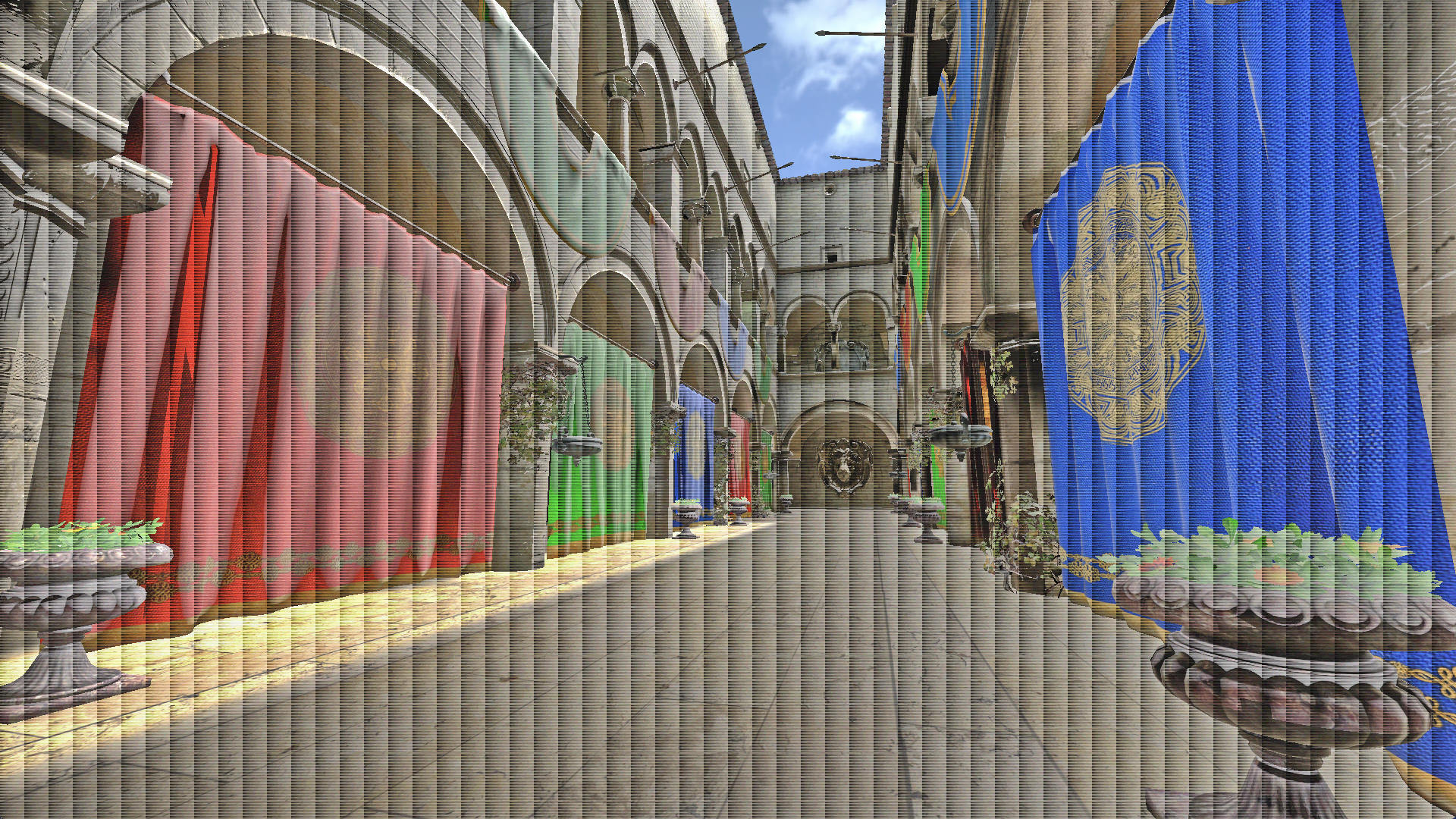
- Outdated headers: Update your iMMERSE headers to the latest version.
- Missing or outdated textures: Ensure all iMMERSE texture files are present and up to date in your textures folder.